What Is Claude Code and How Can You Download It?
Claude Code is one of the most talked-about AI coding agents because it lives where developers already work: inside the project. Here is the practical installation and workflow guide.
ShopiKeys Editorial Team
Published May 7, 2026
Quick answer
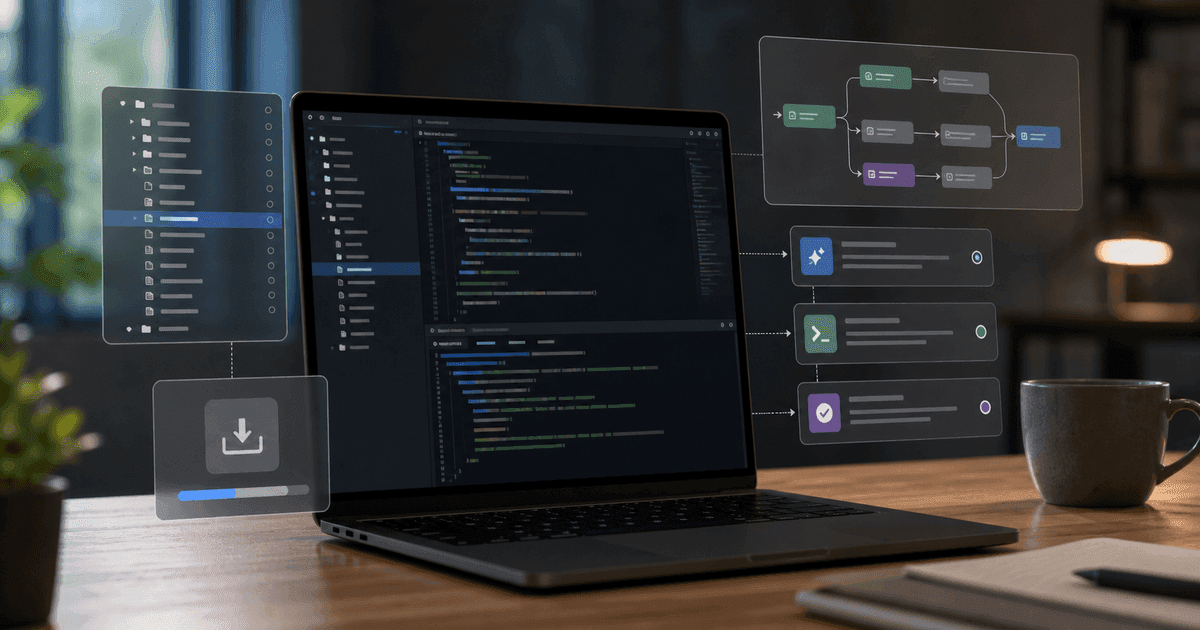
Claude Code is Anthropic's agentic coding tool. It runs in your terminal, understands your codebase, edits files, runs commands, and helps with tasks such as debugging, refactoring, writing tests, and explaining unfamiliar projects. The recommended installation uses Anthropic's native installer. On macOS, Linux, or WSL, run `curl -fsSL https://claude.ai/install.sh | bash`. On Windows PowerShell, run `irm https://claude.ai/install.ps1 | iex`. You can also install it with Homebrew, WinGet, or npm.
Claude Code is not just “Claude with a code prompt”
There is a big difference between asking a chatbot to write a function and letting a coding agent work inside a real repository. Claude Code belongs to the second category.
It can read files, inspect architecture, make edits, run commands, and keep track of the project as a system rather than a pile of isolated snippets. That is why developers talk about it differently. The appeal is not only that it writes code. The appeal is that it can stay close to the work: terminal, branch, tests, error messages, file tree, and Git history.
Used well, Claude Code feels like a patient senior engineer who never gets tired of reading logs. Used badly, it becomes a very fast way to create a confusing diff. The difference is the workflow.
What Claude Code can do
Claude Code is useful for everyday engineering work:
- understanding a new repository;
- finding where a feature lives;
- explaining a complex file;
- writing and updating tests;
- fixing bugs;
- refactoring code;
- generating migration plans;
- updating documentation;
- running terminal commands;
- working with Git;
- helping prepare a pull request.
It is also available in multiple interfaces, including terminal CLI, web, desktop app, VS Code, JetBrains IDEs, Slack, and CI/CD workflows. The terminal version is the one most developers start with because it gives Claude direct context from the local project.
How to install Claude Code
macOS, Linux, or WSL
Open your terminal and run:
curl -fsSL https://claude.ai/install.sh | bashAfter installation, open a project folder and start Claude Code:
cd /path/to/your/project
claude
Windows PowerShell
Open PowerShell and run:
irm https://claude.ai/install.ps1 | iexThen go to your project folder and run:
claudeWindows CMD
If you use Command Prompt instead of PowerShell:
curl -fsSL https://claude.ai/install.cmd -o install.cmd && install.cmd && del install.cmdHomebrew
On macOS, Homebrew users can run:
brew install --cask claude-codeWinGet
On Windows, WinGet users can run:
winget install Anthropic.ClaudeCodenpm installation
You can also install Claude Code globally with npm:
npm install -g @anthropic-ai/claude-codeThe npm method requires Node.js 18 or later. Avoid using `sudo npm install -g` because it can create permission and security problems.
First login and first session
After installation, run:
claudeClaude Code will prompt you to log in. Supported account types include Claude Pro, Max, Team, and Enterprise. Once logged in, open a project directory and begin with a discovery prompt:
What does this project do? Explain the main folders, entry points, and the most important files. Do not edit anything yet.That last sentence matters. When you are learning a project, ask Claude to read before it writes.
The best first tasks for Claude Code
Start with tasks that are easy to verify.
Good first task:
Find the failing tests in this project and explain what is causing them. Do not modify files yet. Give me a plan first.Next step:
Apply the smallest fix for the failing tests. Keep public behavior unchanged. Run the relevant test command and summarize the diff.Another strong beginner workflow:
Create a CLAUDE.md file for this repository. Include project setup, common commands, coding style, test commands, and any important architecture notes you discovered.A `CLAUDE.md` file can act like a local instruction manual for future Claude Code sessions. It helps the agent understand the project faster and reduces repeated explanations.
Claude Code prompts that actually work
For debugging
Investigate this bug: users can submit the form twice if they double-click the button. Find the relevant files, explain the root cause, and propose a minimal fix before editing.For refactoring
Refactor the payment validation logic so it is easier to test. Do not change the public API. Add tests for the current behavior first, then refactor.For tests
Add unit tests for the date formatting helper. Cover edge cases: invalid date, timezone boundary, empty input, and leap year. Run only the relevant test suite.For documentation
Update the README based on the current codebase. Include setup, environment variables, test commands, and local development workflow. Flag anything you are unsure about.What makes Claude Code different from Cursor or Codex?
Cursor is an AI-native IDE. It is excellent when you want visual editing, autocomplete, inline context, and an integrated coding environment.
Codex is OpenAI's coding agent, available as a local CLI and cloud agent. It is strong for ChatGPT-connected workflows and background tasks.
Claude Code is especially attractive to developers who like terminal-first workflows and want deep repository reasoning. It is not about replacing your IDE. It is about adding a powerful agent directly where build commands, tests, logs, and Git already live.
Security and workflow rules
Do not give Claude Code unnecessary access to secrets. Keep `.env` files, API keys, credentials, and customer data out of prompts unless your organization has explicitly approved that workflow.
Use Git branches. Review diffs. Run tests. Treat all AI-generated code as code written by a very fast collaborator who still needs code review.
For production systems, keep human approval in the loop.
Common mistakes
The first mistake is asking for huge changes. “Rewrite the entire backend” is too broad. Ask for a plan, split the work, and verify each step.
The second mistake is skipping tests. If a change cannot be tested, ask Claude to create a test plan before coding.
The third mistake is letting the agent guess project conventions. Put setup commands, style rules, and architecture notes in `CLAUDE.md`.
FAQ
Is Claude Code free?
Claude Code access depends on your Anthropic account, plan, and usage limits. Check Anthropic's current pricing before publishing exact pricing.
Does Claude Code work on Windows?
Yes. Claude Code supports Windows through PowerShell, CMD, WinGet, and WSL workflows.
Do I need Node.js to use Claude Code?
Not if you use the native installer. Node.js 18 or later is required only for the npm installation method.
Can Claude Code run tests?
Yes. Claude Code can run terminal commands, including tests, linters, build commands, and other project scripts, subject to your permissions and environment.
Is Claude Code better than Cursor?
Neither is universally better. Claude Code is excellent for terminal-first agentic work. Cursor is excellent as a full AI-native IDE. Many developers use both.