What Is Cursor and How Do You Use the New AI IDE?
Cursor is not just an AI plugin. It is an AI-native coding environment built around the way developers now work: ask, edit, run, review, repeat.
ShopiKeys Editorial Team
Published May 7, 2026
Quick answer
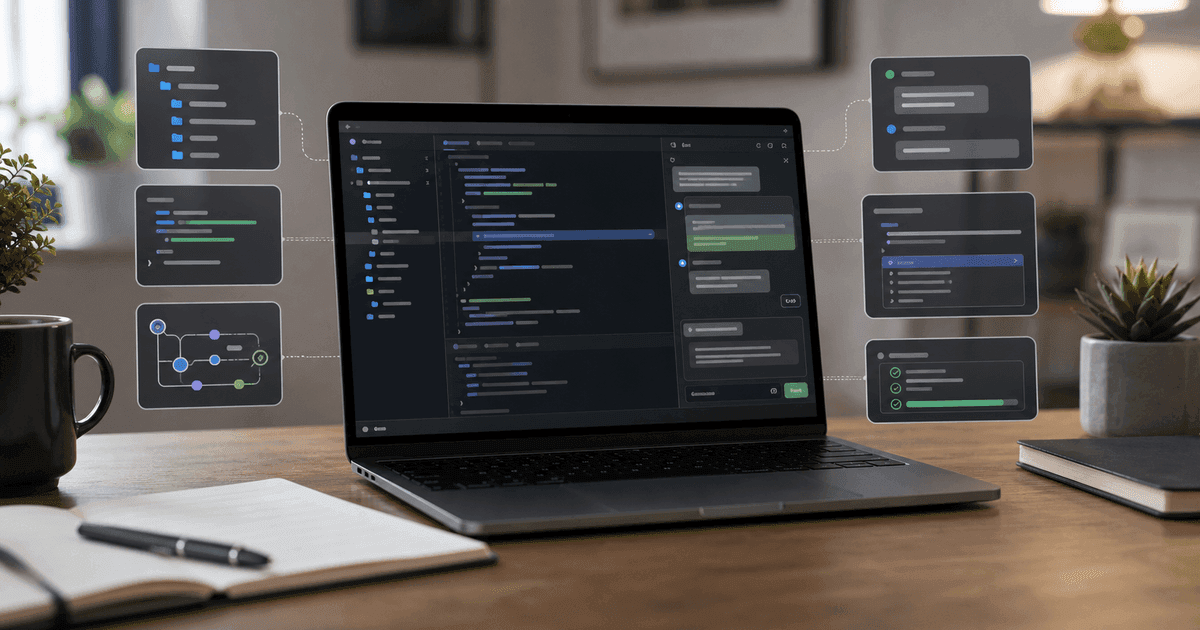
Cursor is an AI-native code editor and IDE designed to help developers write, edit, understand, and refactor code faster. It combines familiar editor workflows with AI chat, codebase context, autocomplete, Agent mode, rules, MCP integrations, skills, and CLI features. To use it, download Cursor from the official Cursor website, open your project, let it index the codebase, define project rules, and use AI for small, reviewable changes rather than vague full-app requests.
Cursor is what happens when the editor becomes conversational
For years, the code editor waited for you to type. Autocomplete helped. Linters complained. Extensions added color and convenience. But the editor itself did not understand your goal.
Cursor changes that feeling. It lets you point at code and ask questions. It can suggest edits across files. It can explain why a test fails. It can help refactor a component, create a function, update a type, or navigate a codebase you have never seen before.
The important part is not that Cursor has AI. Many editors have AI now. The important part is that Cursor is built around AI as a core workflow, not as a side panel bolted onto an old habit.
What Cursor is used for
Cursor is useful for:
- writing new code;
- editing existing code;
- understanding unfamiliar repositories;
- generating tests;
- refactoring files;
- fixing TypeScript errors;
- explaining stack traces;
- building prototypes;
- asking questions about a codebase;
- making multi-file changes with review.
It is especially popular with developers who want the speed of AI without leaving the IDE.
How to download Cursor
Go to the official Cursor website and download the desktop app for your operating system. Cursor is commonly used on macOS, Windows, and Linux.
After installation:
- Open Cursor.
- Sign in or create an account if required.
- Open a project folder.
- Let Cursor index the codebase.
- Review privacy and model settings.
- Create project rules before large AI tasks.
If you already use VS Code, the transition usually feels familiar because Cursor keeps many editor conventions developers already know.
Cursor vs VS Code vs GitHub Copilot
VS Code is a general-purpose code editor with a massive extension ecosystem.
GitHub Copilot is an AI coding assistant that works inside supported editors.
Cursor is a code editor built around AI-native workflows. It includes chat, codebase-aware editing, agentic work, rules, and deeper AI integration as part of the main experience.
A simple comparison:
| Tool | Best for | Main advantage |
|---|---|---|
| VS Code | General coding | Extensions and flexibility |
| GitHub Copilot | Inline assistance | Autocomplete and suggestions inside existing editor |
| Cursor | AI-first coding workflow | Codebase chat, edits, agent mode, project rules |
Many developers still keep VS Code installed. Cursor is not a moral decision. It is a workflow choice.
The first thing to do in Cursor: ask it to explain the repo
Before editing, ask Cursor to explain.
Explain this project structure. What are the main folders, entry points, frameworks, and likely test commands? Do not edit files.Then ask:
What project rules should I define so AI edits match the existing style?This step prevents random code style and reduces future cleanup.
Use Cursor Rules like a project constitution
Rules tell Cursor how to behave inside your project. They can include architecture constraints, naming conventions, testing requirements, formatting preferences, and instructions for what not to do.
Example rules:
Use TypeScript strict mode. Prefer small pure functions. Do not add new dependencies without asking. Keep React components under 200 lines when reasonable. Add tests for behavior changes. Use existing UI components from /components/ui before creating new ones.Rules are one of the biggest differences between casual AI coding and serious AI-assisted development. They turn “write code” into “write code like this project.”
Agent mode: powerful, but do not overscope it
Cursor's Agent mode can work through multi-step coding tasks. This is useful when a change touches several files, requires exploration, or needs command execution.
Good Agent task:
Add a loading state to the checkout button. Use the existing Button component. Disable double submit. Add a test for the loading behavior. Run the relevant test command.Bad Agent task:
Make checkout better.Agent mode works best when the task has a clear finish line.
How to use Cursor for debugging
Paste the error, but do not paste the whole universe.
This test fails with the error below. Identify the likely root cause, inspect relevant files, and propose a minimal fix before editing.Then include the shortened error.
After Cursor proposes a fix, ask:
What behavior changed, which files did you edit, and what test proves the fix?This creates an audit trail.
How to use Cursor for refactoring
The safest refactor workflow is test first, refactor second.
Before refactoring, add characterization tests for the current behavior of the pricing function. After tests pass, refactor for readability without changing behavior.This prevents the AI from “improving” the code by changing what it does.
How to use Cursor for learning
Cursor is excellent for developers learning a new framework or codebase.
Ask:
Explain this file line by line like I know JavaScript but I am new to this framework.Show me the data flow from the form submission to the database write.Where should I add a new feature like email notifications? Give me options and tradeoffs.These questions turn a codebase into a tutorial.
Cursor mistakes to avoid
Do not accept large diffs without review.
Do not add dependencies just because the AI suggested them.
Do not let the agent edit security-sensitive code without tests.
Do not use AI to hide knowledge gaps on a team. Use it to expose and document them.
Do not confuse speed with maintainability.
Best Cursor workflow for real projects
- Open a branch.
- Explain the task.
- Ask for a plan.
- Let Cursor edit a small slice.
- Review the diff.
- Run tests.
- Ask for a summary.
- Commit.
- Move to the next slice.
This loop sounds slower than “build everything,” but it is usually faster because you do not lose a day untangling a giant AI-generated patch.
FAQ
Is Cursor an IDE or a code editor?
Cursor is commonly described as an AI-native code editor or IDE. It provides editor features plus AI workflows for codebase understanding, editing, and agentic tasks.
Is Cursor based on VS Code?
Cursor feels familiar to VS Code users and supports many similar workflows, but it is positioned as its own AI-native coding environment.
Can beginners use Cursor?
Yes. Beginners can use Cursor to explain code and learn faster, but they should still study fundamentals and review generated code carefully.
Is Cursor better than Claude Code?
Cursor is better when you want an integrated visual coding environment. Claude Code is better when you prefer terminal-first agentic workflows. Many developers use both.
Is Cursor safe for production code?
It can be used in production workflows if your team follows normal engineering discipline: branches, code review, tests, secrets management, and access controls.